Your Windows PC Is Full of Ads. Tell Claude to Go Delete Them.
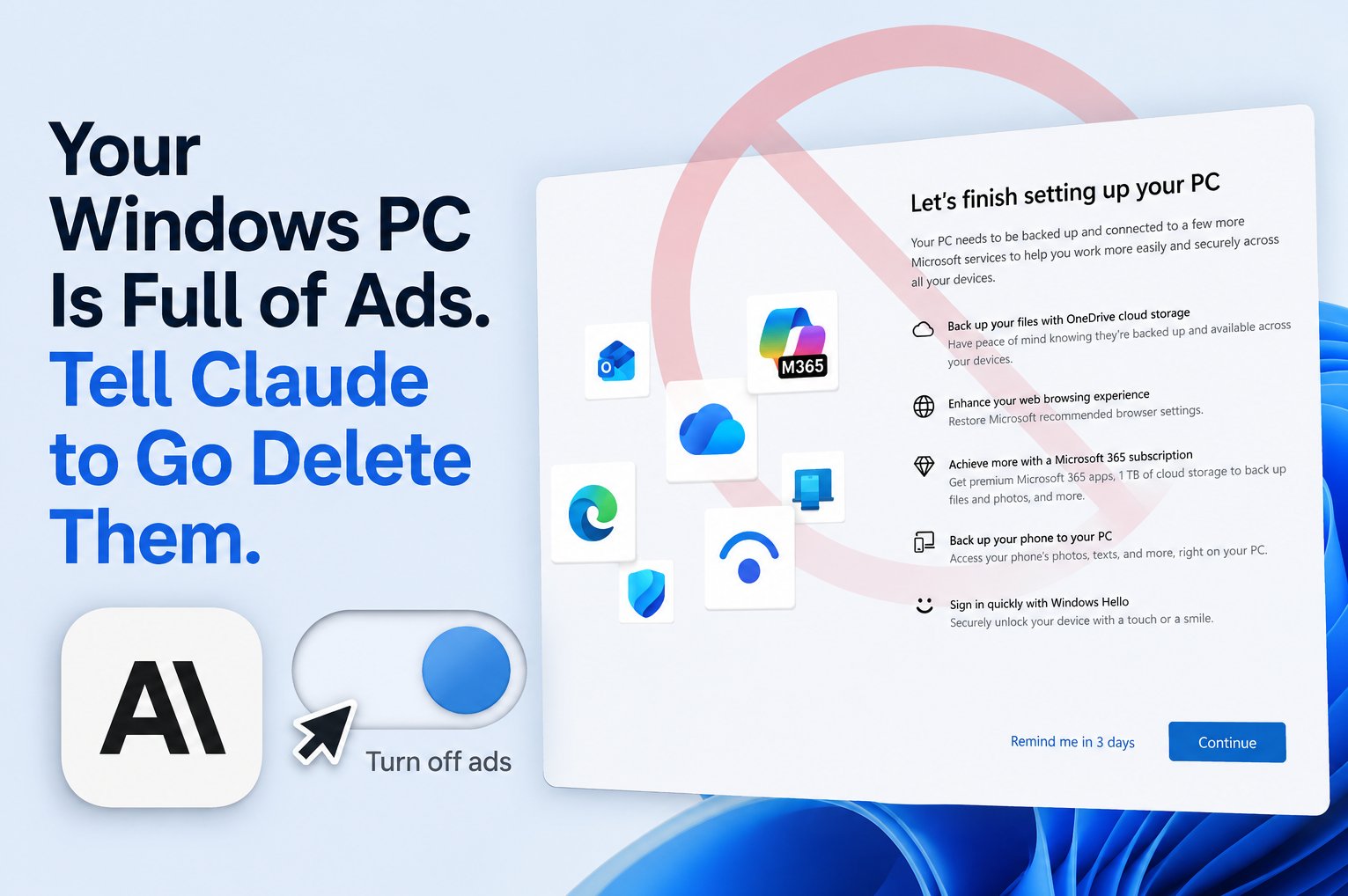
OneDrive pitches at boot, “recommendations” in your Start menu, ads inside the Settings app itself. The usual guide for clearing it all out is a dozen screenshots of menus buried three levels deep. This one is different: instead of clicking through Settings yourself, you tell Claude to do it, and watch it happen on your screen.
Claude’s Cowork mode (in the Claude desktop app) can control apps on your computer with your permission — open Settings, flip toggles, and even generate a registry file to lock your choices in. Below is the exact sequence of prompts I used to clear every built-in ad and nag out of Windows 11. Copy them, paste them, approve the access dialogs, done.
What you need: The Claude desktop app with Cowork mode, on the Windows PC you want to clean up, and a paid Claude plan; desktop control is currently a research-preview feature on Pro and Max, and its behavior may change. When Claude asks to control an app (like Settings), you’ll get an approval dialog. That’s you keeping the keys.
How this works (30-second version)
When you ask Claude to change a setting, it will:
- Ask permission to control the relevant app (you approve a dialog).
- Open the app, navigate to the setting, and flip it — you see every move.
- For anything it shouldn’t do automatically (like merging a registry file), it hands you a ready-made file and tells you how to run it yourself.
You stay in control the whole time. One thing not to be surprised by: Claude prefers the least invasive route (connectors first, browser next, direct desktop control last), so it may narrate that reasoning before it ever opens Settings. Now the prompts.
Step 1 — Kill the “Let’s finish setting up your PC” screen
That full-screen prompt after restart is the one everyone hates. Start here.
Prompt: “The ‘Let’s finish setting up your PC’ screen keeps appearing when I restart Windows. Open Settings and turn it off for me — it’s the toggle under System → Notifications → Additional settings. Turn off the finish-setup suggestion and the tips/suggestions box too.”
Claude will ask to control Settings, then navigate to System → Notifications → Additional settings and uncheck “Suggest ways to get the most out of Windows and finish setting up this device” and “Get tips and suggestions when using Windows.”
Step 2 — Turn off the ads and “suggestions”
Prompt: “Now go to Privacy & security and turn off all the ad and suggestion toggles — personalized offers, the advertising ID, suggested content and notifications in the Settings app, and the app-launch tracking that feeds ‘recommendations.’ Leave the language-list setting alone.”
Claude opens Privacy & security → Recommendations & offers (or → General on older Windows builds) and switches off Personalized offers, Advertising ID, Show notifications in Settings, Recommendations and offers in Settings, and Improve Start and search results.
Step 3 — Clean up the Start menu
Prompt: “In Personalization → Start, turn off the ‘Show recommendations for tips, shortcuts, new apps’ toggle and the ‘Show account-related notifications’ one — those are the OneDrive and Microsoft 365 upsells in the Start menu.”
Step 4 — Wipe the “device usage” personalization
Prompt: “Go to Personalization → Device usage and switch every category off (Gaming, Family, Creativity, School, Entertainment, Business, Development). I don’t want any of it personalizing tips or ads.”
Step 5 — Clear the lock screen tips
Prompt: “Check my lock screen settings. If it’s set to Windows Spotlight, switch it to Picture, uncheck ‘Get fun facts, tips, tricks, and more,’ and set the lock screen status to None.”
Claude will report back if it’s already clean — Spotlight is the only lock-screen mode that injects tips and ads, so if you’re on a plain Picture already, there’s nothing to do.
Step 6 (Bonus) — Nuke the taskbar Widgets / news feed
Prompt: “Turn off the Widgets button on my taskbar — the weather icon that opens the news and ads panel. It’s in Personalization → Taskbar.”
Step 7 — Make it permanent so Windows Updates can’t undo it
The big once-a-year feature updates sometimes silently switch the finish-setup prompt back on. Ask Claude to lock your choices into the registry so they stick.
Prompt: “Some of these get reset by Windows feature updates. Create a registry (.reg) file I can run to lock all of these settings off permanently, plus a second .reg file that restores the defaults in case I ever want to undo it. Keep everything under my user account (HKEY_CURRENT_USER) so it’s reversible and doesn’t need admin.”
Claude will generate two files and present them to you:
- Stop-Windows-Nags.reg — double-click it, click Yes, then sign out and back in.
- Restore-Windows-Defaults.reg — the undo button.
One deliberate choice here: have Claude generate the files, not apply them. A registry merge is exactly the kind of change you should trigger yourself. Claude builds the file, you read it, you decide to run it.
The all-in-one prompt
Prefer to fire it off in one shot? Paste this and approve the access dialog when it appears:
Prompt: “I want to remove all the built-in ads, suggestions, and nags from my Windows 11 install. Please go through Settings and turn off: (1) the ‘finish setting up your PC’ prompt under System → Notifications → Additional settings; (2) every ad/suggestion toggle under Privacy & security; (3) Start menu recommendations and account-related notifications; (4) all the Device usage categories; (5) lock screen Spotlight tips; and (6) the taskbar Widgets feed. Then generate a .reg file that locks these off so feature updates can’t undo them, plus a matching undo file. Walk through it step by step and show me what you changed. Don’t touch any security settings.”
Why use Claude for this instead of doing it by hand?
- You don’t have to find the menus. Microsoft renames and relocates these settings between Windows versions; Claude finds them live instead of you hunting through a year-old screenshot guide.
- It explains as it goes. You get told what each toggle does and why it’s an ad, not just “turn this off.”
- The registry part is the hard part, done for you. Hand-writing a
.regfile with the right encoding is exactly the kind of fiddly thing that’s easy to get wrong — Claude generates it correctly, and a matching undo file alongside it.
Disclaimer
Do all of this at your own risk. This guide touches the Windows registry, and registry edits can break things in ways that are annoying to undo, so set a System Restore point first. And everything Anthropic says about how Cowork and desktop control operate, their limits, and the ways they can fail applies here in full: you’re letting an AI agent drive your actual computer, so read every permission dialog before you approve it, watch what it does, and verify the results yourself.