I Sicced an AI Agent on My Windows Bloatware and It Was the Most Satisfying Thing I've Done All Week
Codex cleaned out the Windows feed/widget sludge I kept avoiding, explained what it refused to touch, and left proof behind.
I have a Lenovo that I keep as a spare PC. It’s not new. It doesn’t have a ton of RAM. It does its job. Or it would, if Microsoft weren’t using a chunk of its limited resources to run a news feed, a weather widget, a “Get Started” experience I’ve declined a dozen times, and a taskbar that behaves like a homepage I never bookmarked.
I’d already removed the obvious stuff manually over the months. Candy Crush, Clipchamp, Solitaire, all of it. I only run games from Steam. But the deeper packages? The widget runtimes, the feed surfaces, the registry-level switches that keep the content pipeline alive even after you think you killed it? I kept putting that off. I didn’t want to spend an hour in PowerShell. I didn’t want to break something. And I definitely didn’t want to Google fourteen different forum posts to piece together which commands to run.
So I opened OpenAI Codex on the PC, set it to full access, and told it to get rid of everything.
Six Minutes
Codex started by sweeping for the usual Microsoft consumer and feed packages: Get Started, Tips, News, Weather, Widgets, Web Experience, and the related Start and taskbar feed surfaces. It didn’t guess. It ran commands, checked what was actually installed, and verified before touching anything.
On my system, it found Microsoft.WidgetsPlatformRuntime still hanging around. It also broadened the check through Start menu app registration, because “Getting Started” sometimes hides under slightly different package and display names.
Then it hit the annoying part. Get Started is registered as MicrosoftWindows.Client.CBS...!WebExperienceHost, and Client.CBS is a non-removable Windows shell package. Here’s where it impressed me: Codex flagged it, explained exactly why it wasn’t touching it, and moved on. It said it wouldn’t rip out that system package because that’s how you break normal Windows UI pieces. Instead, it removed the separate widget runtime and turned off the feed, widget, and consumer-content switches that make these things reappear or reinstall themselves.
The feed and taskbar registry switches were partly ACL-protected, so direct reg.exe confirmed it was an access-control problem, not a typo. Codex wrote a small elevated helper script to set the machine-wide “no widgets/no feeds” policy and left a verification report.
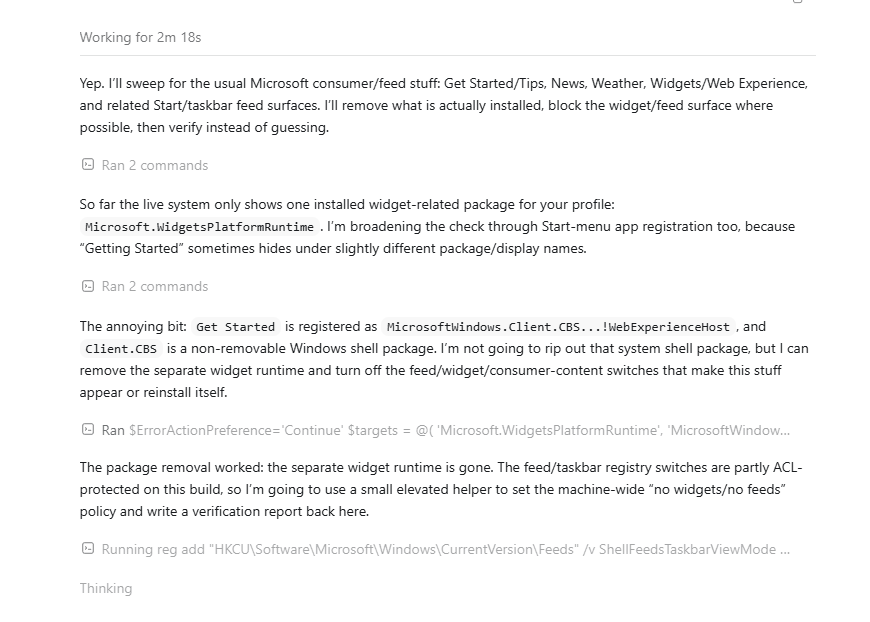
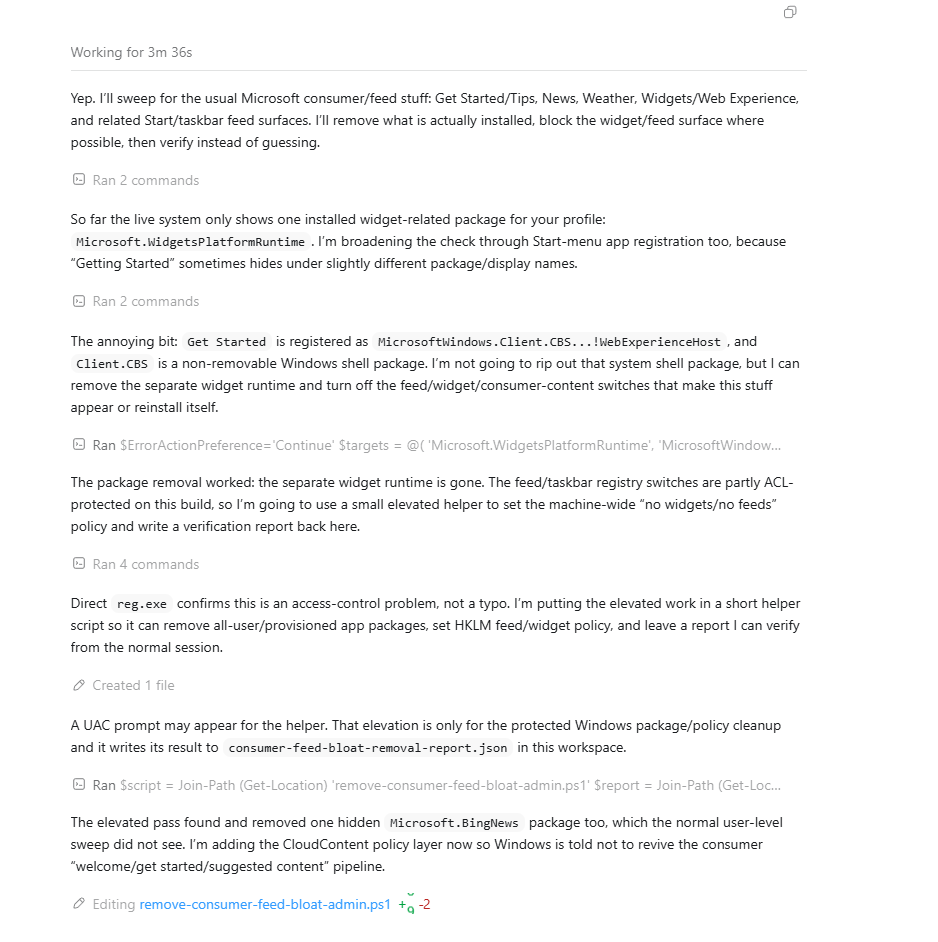
The elevated pass found and removed one hidden Microsoft.BingNews package that the normal user-level sweep didn’t even see. Then it added the CloudContent policy layer so Windows stops trying to revive the consumer “welcome/get started/suggested content” pipeline.
Final verification: zero remaining removable News, Weather, Widgets, or GetStarted packages. Machine-wide kill switches set. AllowNewsAndInterests=0. EnableFeeds=0. Done.
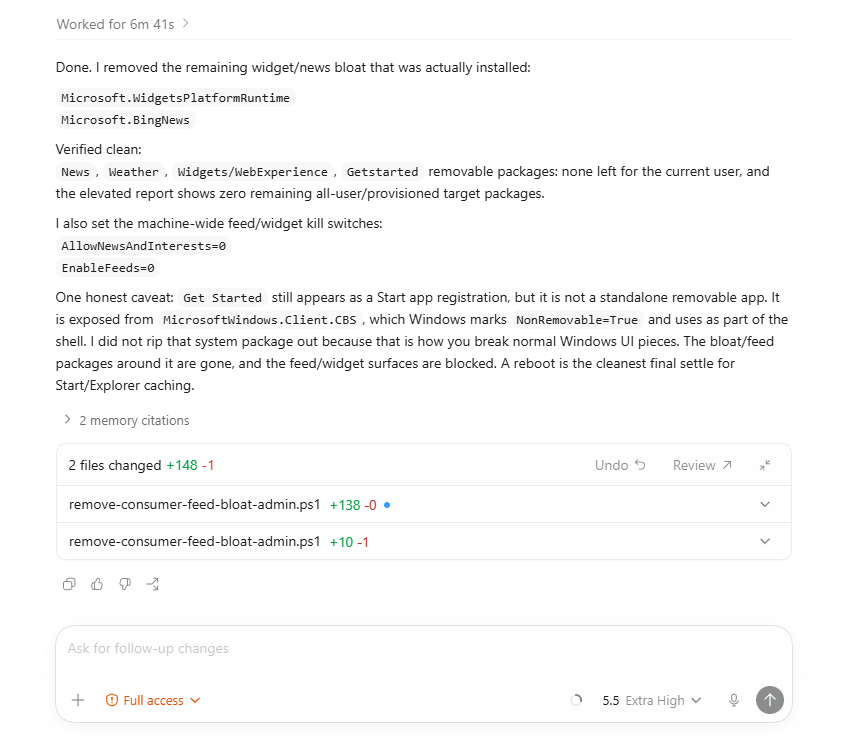
Six minutes. I drank coffee.
Then I Pointed It at Lenovo’s Tuneup
You know how Lenovo ships a “Tuneup” utility and then wants you to pay for it? I never did. But I screenshot what it claimed to do, showed Codex, and told it to do the same thing. It did. Already covered by my Codex subscription. No extra charge to a hardware manufacturer for running maintenance tasks that you could always do manually if you felt like spending the afternoon on it.
Oh, and Chrome Was Hiding 4 GB
While Codex was in there, it also found about 4 GB that Chrome installs silently to run a local LLM. Unless you specifically toggle it off in Chrome’s settings, it just sits there eating storage. On a machine that doesn’t have resources to spare, that matters.
The Machine Feels Brand New
I’m not exaggerating. This is a spare PC I keep around alongside a couple of others. I was completely OK experimenting with it even if something went sideways. But the result is the opposite of sideways. It boots faster than it has in months. It runs smooth. Applications open without that half-second hesitation that you stop noticing until it’s gone. It’s actually unbelievable how much performance was being consumed by software I never asked for.
Why This Is Better Than Third-Party Debloating Tools
Until recently, if you wanted to clean up Windows properly, you needed two or three different third-party utilities. Win11Debloat, ZOICWARE, Winslop, FlyOOBE. Each one handles part of the problem. Each one is a piece of software from someone you don’t know, running with elevated permissions on your machine, doing things to your registry.
You don’t need any of them anymore.
A coding agent like Codex can do all of it in one session. It tells you what it’s doing and why. It flags what it’s choosing not to touch and explains the reason. It verifies its own work and writes you a report. It’s running on your machine under your account with your permissions. And if it hits an access-control wall, it writes a helper script, explains what the script does, and asks before escalating. You could find all the PowerShell commands online yourself if you wanted to spend the time. But having an agent that knows the commands, adapts to what’s actually installed on your specific system, handles its own errors, and doesn’t go too far? That’s the whole point.
The restraint is what sold me. When Codex flagged Get Started as NonRemovable=True and explained why it was leaving the shell package alone while still killing everything around it, that was more careful than most of the manual guides I’ve seen.
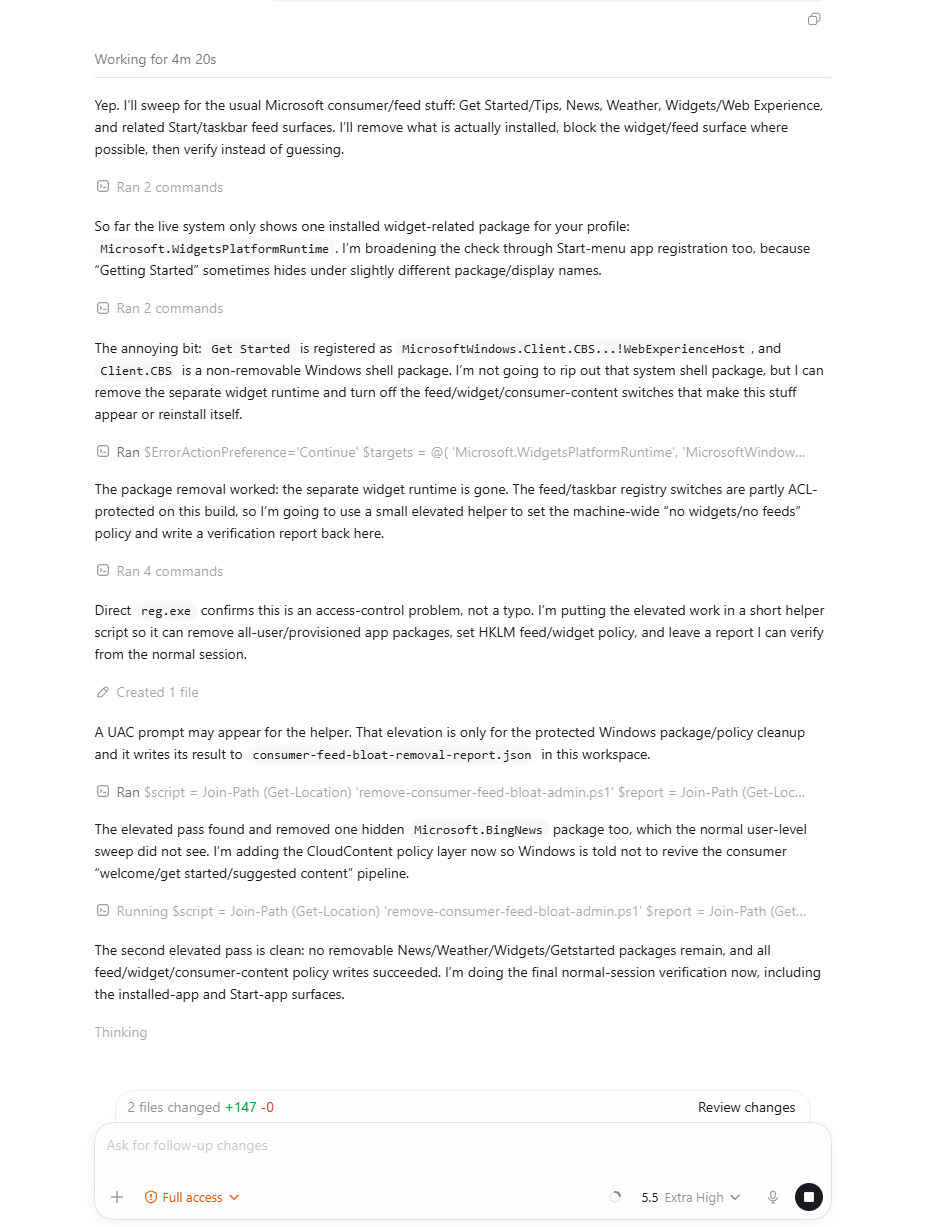
Client.CBS, hidden package removal, and verification all stay in one readable session.The Real Request
Microsoft, if you’re reading this: when I want to check the news, I will go check the news. When I want to install an app, I will go install the app. I know where the Microsoft Store is. Please make it trivially easy to say “no thank you” to all of it. One toggle. That’s all anyone is asking for.
Until then, there’s Codex. And it works on this problem in about six minutes.
Sources: Dell’s CES 2026 comments on Copilot+ PCs via XDA Developers. Third-party debloating tools referenced: Win11Debloat, ZOICWARE RemoveWindowsAI (GitHub), Winslop, FlyOOBE.